


IPTV Installation Page
Pre-Installation Requirements
Setup Instructions
Phase 1: Initial TV Setup
Connect TV power cables and turn on TV
Select your region (choose “Australia” if prompted) and preferred language.

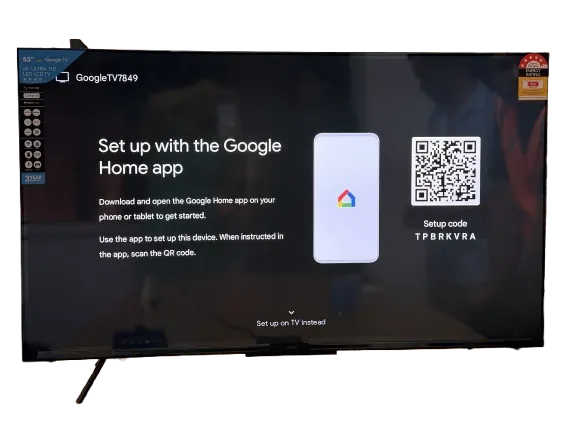
When prompted to “Set up with Google Home App,” select “Set up on TV Instead” at the bottom of the page.
Choose Home for TV Mode

Connect to Wi-Fi by selecting your network and entering the password.
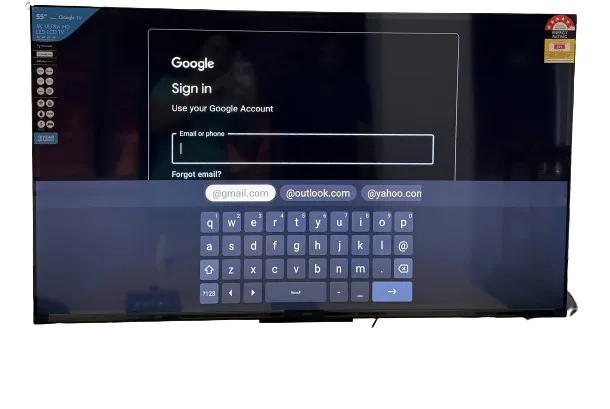
Sign in with your Google account
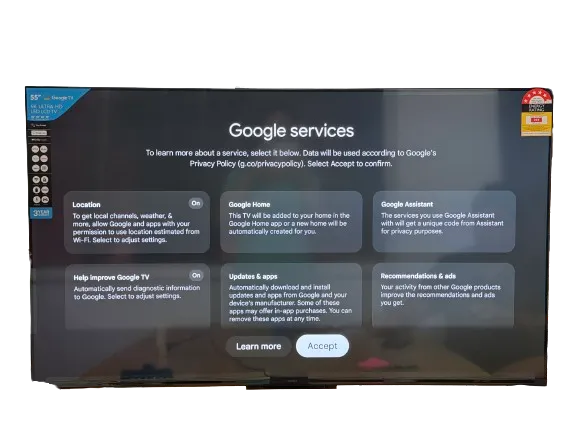
Accept the Terms of Service and Google Services
Decline optional prompts such as “Stay in the know” and “Search across all TV apps.”

Confirm chosen services and select “I have read and agreed to the whole agreement.”

Select Default for the LCN Switch, choose your time zone, and select Skip for Tuner Mode


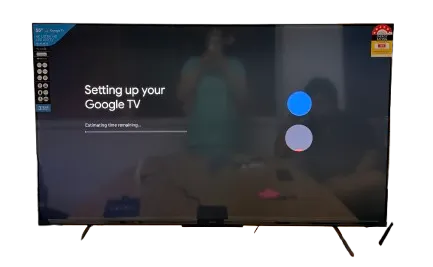
Wait for the apps to load and complete the setup process.
Phase 2: Install IPTV Software
At this point, plug in the flash drive containing the IPTV software from CSL.

Search for and open the File Manager app, then accept the Terms of Service.
Continue through the Privacy Policy and Access Request by selecting Next.

Allow File Manager permission to manage files.

Locate and select USB Drive, then choose the iptv-smarters v4.0.4apk file.
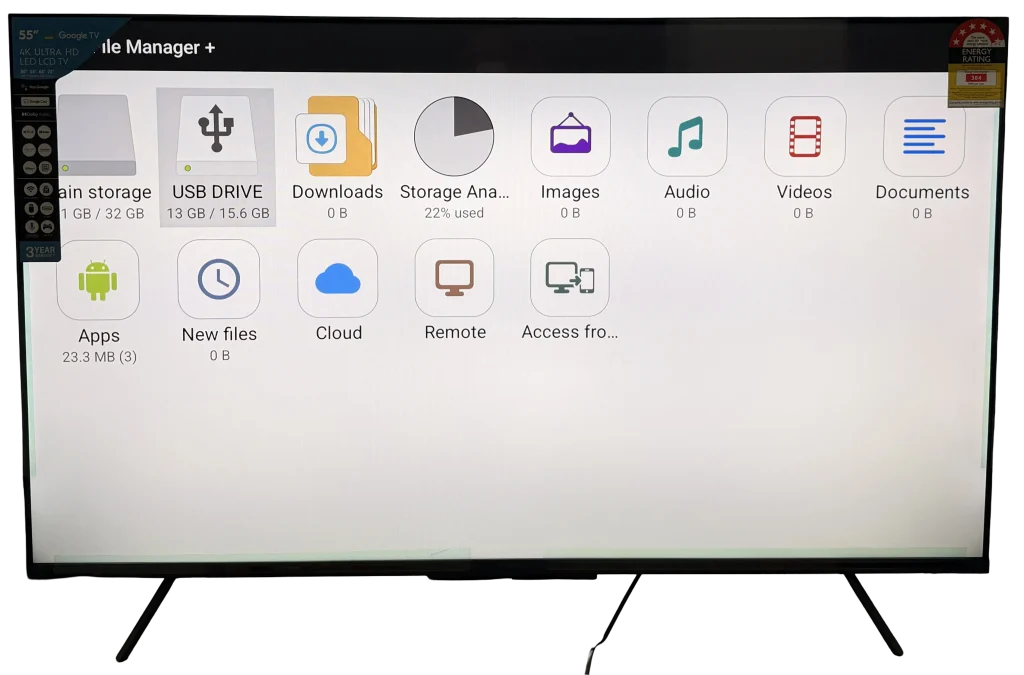

Select Install, open Settings when prompted, and allow File Manager to install unknown apps.


Select Install again, then open the app once installation is complete.

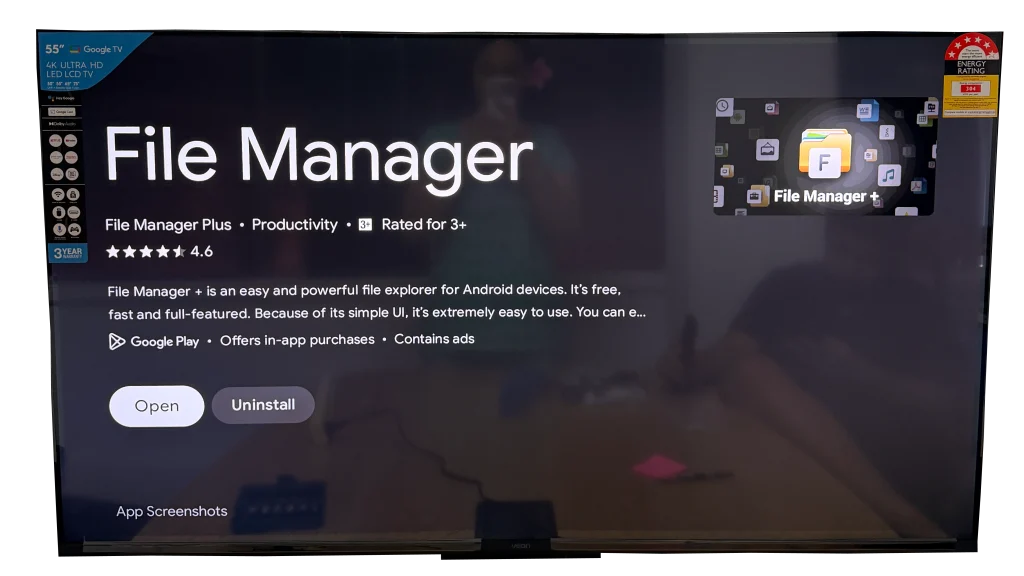
Phase 3: Configure IPTV App
When prompted to join Telegram, select “No Thanks.”
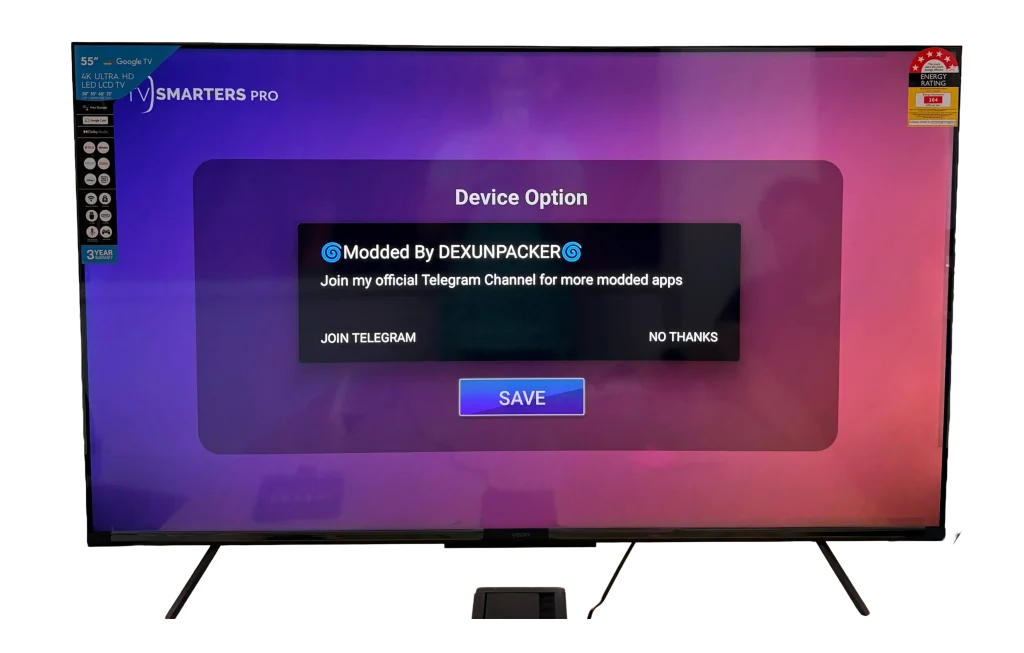
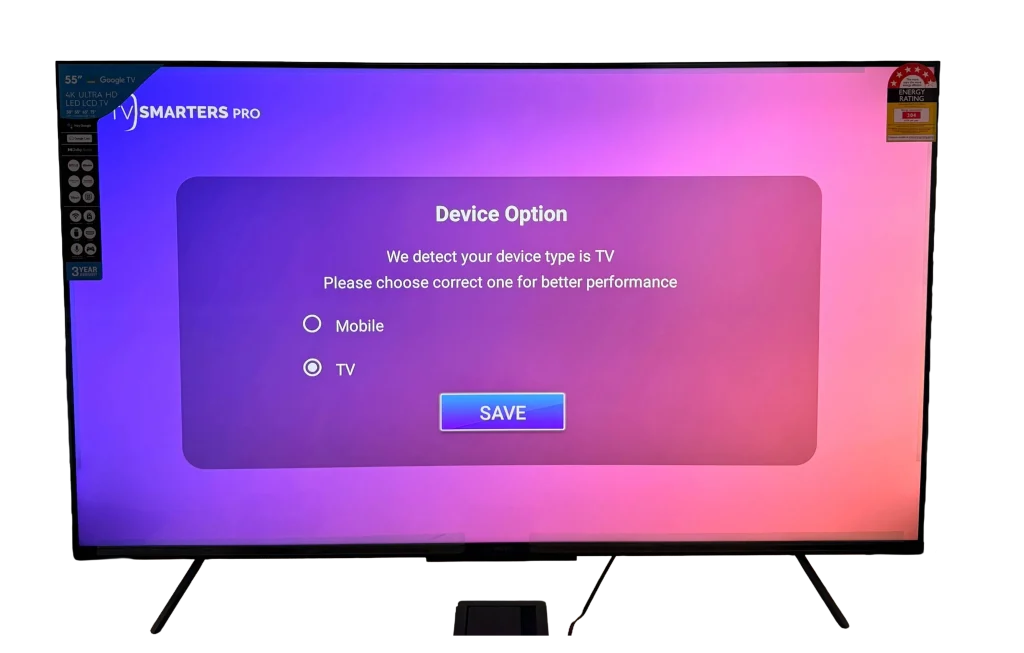
Choose TV as the device option and select Save.
Accept the License Agreement.
Select XTREME CODES and enter your name in the Any Name field.

Enter the CSL credentials into the Username, Password, and URL fields, then select Add Playlist.

Download LIVE TV, MOVIES, and SERIES. These are the three categories available to watch.
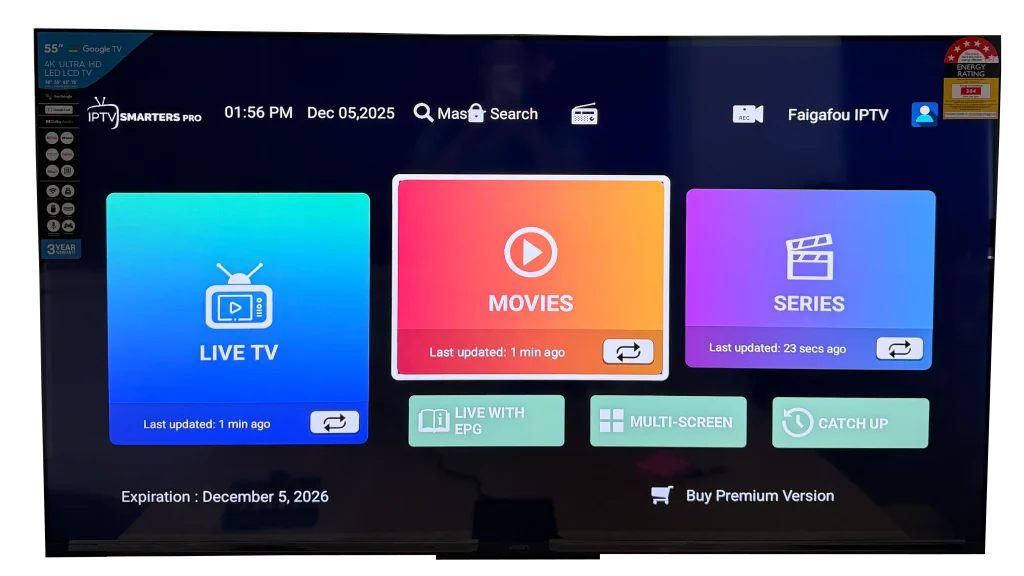
To watch, simply select the category you want: Live TV, Movies, or Series.

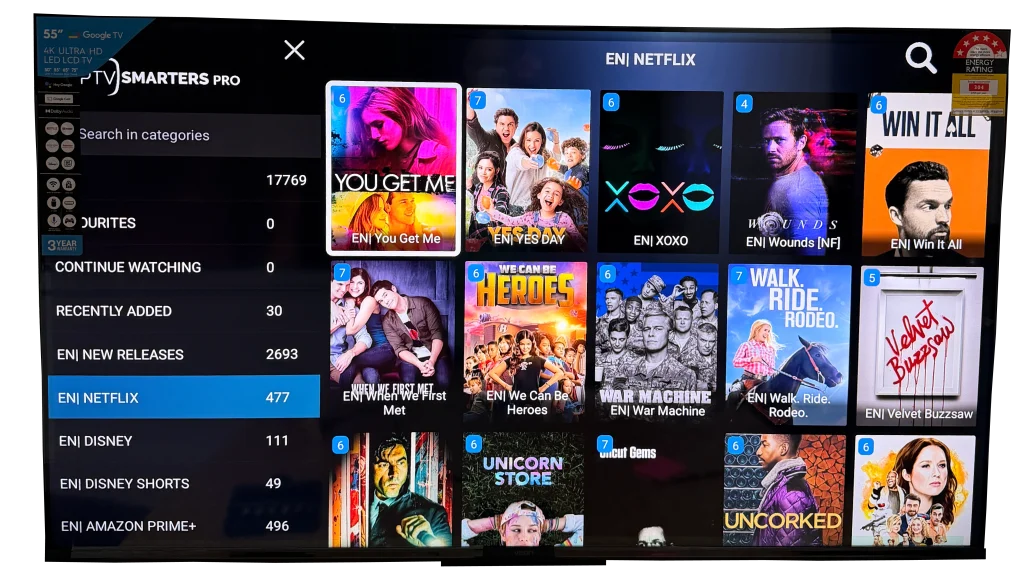
Each time you turn on your TV, locate and open the IPTV app to begin watching.